What is MetaWurks?
MetaWurks is an All-in-One Multi-Modal AI Orchestrator that unifies multiple AI models, document intelligence, external service integrations, and background task processing into a single powerful platform.
Think of it as your AI assistant that can:
- Chat with multiple AI models (GPT, Claude, Gemini, Grok, DeepSeek, Perplexity)
- Upload and search through your documents using AI
- Connect to your email, calendar, Slack, Figma, and more
- Run background research tasks and generate professional documents
- Export conversations to PDF, Word, Excel, or PowerPoint
- Share chats with teammates via shareable links
Getting started
Getting started with MetaWurks takes just a few minutes.
- 1Create an account — Visit metawurks.com and sign up with your email or Google account. You can also sign in with Microsoft.
- 2Choose your plan — MetaWurks offers a free tier to get started, plus Basic, Starter, Professional, and Enterprise plans with more features and higher usage limits.
- 3Start chatting — Once logged in, you land on the chat page. Type your message and the AI will respond in real time.
- 4Explore features — Upload documents, connect integrations, try different AI models, and experiment with background tasks as you get comfortable.
The chat interface
The chat is the core of MetaWurks. Here is what you will find:
- Sidebar — Shows your chat history, create new chats, and access settings. You can search through past conversations.
- Message input — Type your message at the bottom. You can also attach files directly in the chat.
- Model selector — Choose which AI model to use from the dropdown. Different models have different strengths.
- Streaming responses — AI responses appear in real time as they are generated, so you don't have to wait for the full response.
- Message actions — Hover over any message to edit it, regenerate the AI response, or copy the content.
- Chat titles — Chats are automatically titled based on your first message. You can rename them anytime.
AI models
MetaWurks gives you access to multiple AI models from different providers. Switch models at any time using the model selector in the chat.
| Provider | Models | Best for |
|---|---|---|
| OpenAI | GPT-5.2, GPT-5.1, GPT-4 | General tasks, coding, analysis |
| Anthropic | Claude 3.5 Sonnet, Claude 4.5 | Long-form writing, reasoning, safety |
| Gemini 2.5 Flash | Fast responses, multimodal tasks | |
| xAI | Grok 4.1 Fast Reasoning | Real-time info, fast reasoning |
| DeepSeek | DeepSeek Chat | Technical & coding tasks |
| Perplexity | Sonar Pro | Web search, real-time information |
Uploading documents
Upload documents and use AI to search, summarize, and chat with your files.
Upload sources
- Local upload — Drag and drop files or click to browse. Supports PDF, DOCX, TXT, XLSX, CSV, PPTX, images, and videos.
- Google Drive — Connect your Google Drive and browse or select files and folders to import.
- OneDrive — Connect your Microsoft OneDrive account and import files directly.
How to upload
- 1Click the upload icon in the sidebar to open Knowledge Sources.
- 2Choose your upload source (Local, Google Drive, or OneDrive).
- 3Select your files. You can upload multiple files at once.
- 4Files are automatically processed — chunked, indexed, and made searchable by the AI.
- 5You can view and manage all uploaded files in the Discover page.
Chat with your documents
Once your documents are uploaded and processed, MetaWurks uses RAG (Retrieval-Augmented Generation) to search through your documents and provide accurate, source-backed answers.
Simply ask questions about your documents in the chat:
- "What are the key findings in the Q4 report?"
- "Summarize the contract terms from the uploaded PDF"
- "Find all mentions of revenue projections across my documents"
- "Compare the data in my two spreadsheets"
The AI will search your uploaded documents, find the most relevant sections, and craft an accurate response with citations.
Background tasks
For complex, long-running tasks, MetaWurks can run background tasks that work behind the scenes while you continue chatting.
Ideal for
- Research — Deep web research on a topic, gathering sources and synthesizing findings.
- Document creation — Generating comprehensive reports, proposals, or guides.
- Analysis — Analyzing large datasets or documents that require extended processing.
- Multi-step workflows — Tasks that require multiple steps of research, analysis, and writing.
When a background task is running, you will see a progress card in the chat with a real-time activity log. Tasks can run for up to 15 minutes, and you can run up to 5 tasks at once.
Using integrations in chat
Once you have connected external services (see ), you can use them naturally in chat. The AI automatically detects when it needs to use a connected tool.
Example prompts
- "Check my Gmail for emails from John this week"
- "What meetings do I have tomorrow on Google Calendar?"
- "Post a message to the #general channel in Slack"
- "Show me the latest designs in my Figma project"
- "Summarize my last meeting notes from Fireflies"
Exporting & downloading
Export AI-generated content in multiple professional formats:
- PDF — Professional layout with formatting, headers, and proper typography.
- Word (DOCX) — Editable documents that you can further modify in Microsoft Word or Google Docs.
- Excel (XLSX) — Spreadsheets with structured data, ideal for tables and data analysis results.
- PowerPoint (PPTX) — Presentation slides generated from your content.
- CSV — Simple data export for use in any spreadsheet application.
- Plain Text (TXT) — Raw text export for maximum compatibility.
Sharing chats
Share any chat conversation with others using a shareable link:
- 1Open the chat you want to share and click the "Share" button.
- 2Choose whether to share the full chat or from a specific message.
- 3A unique share link is generated. Copy it and send it to anyone.
- 4Recipients can view the shared chat in read-only mode — no account required.
Plans & usage
MetaWurks uses a token-based usage system. Each AI interaction consumes tokens based on the length of your messages and responses.
- Free — Get started with a daily token allowance. Great for trying out the platform.
- Basic — Higher token limits for regular use.
- Starter — Increased limits plus access to all AI models.
- Professional — Generous limits, priority support, and advanced features.
- Enterprise — Custom limits, dedicated support, and team management. Contact sales for details.
Tips & best practices
- Be specific — The more context you give the AI, the better the response. Instead of "summarize this", say "summarize the key financial metrics from the Q4 report."
- Use the right model — Perplexity Sonar Pro is best for real-time web searches. Claude excels at long-form writing. GPT is great for general tasks.
- Upload relevant documents first — If you are going to ask questions about specific data, upload the documents before starting the conversation.
- Use background tasks for deep research — For comprehensive research that requires multiple web searches and synthesis, let a background task handle it.
- Connect your tools — The more services you connect, the more powerful MetaWurks becomes. Connect Gmail, Calendar, and Slack for a unified productivity experience.
- Export when you need to — Use the export feature to save AI-generated reports, analyses, and documents in professional formats for sharing with your team.
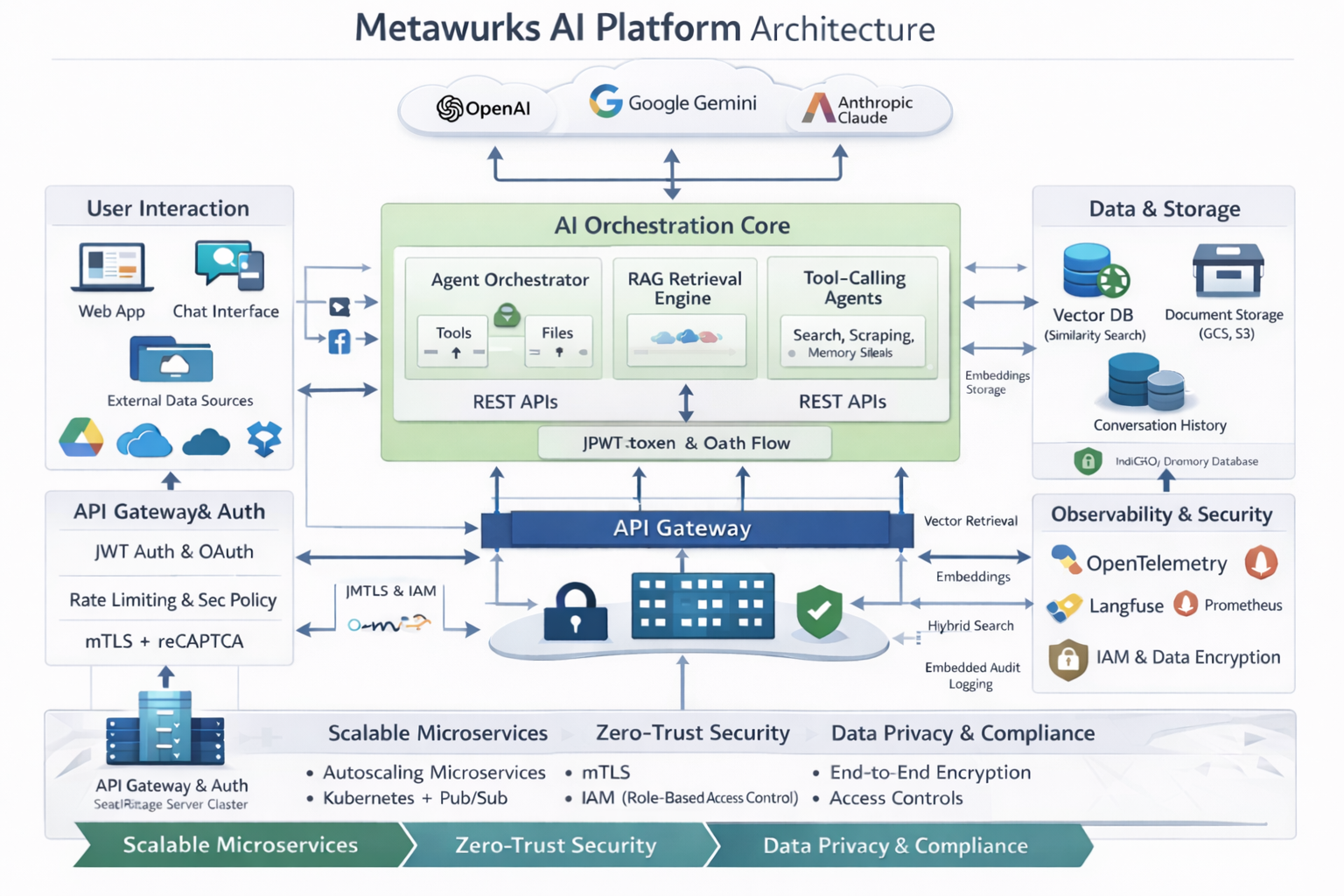
MetaWurks AI Platform Architecture
A high-level view of how MetaWurks orchestrates AI models, data storage, security, and integrations.